
The Tim Hortons app is the chain’s own app for Canada. It is free, it comes from The TDL Group Corp., and it puts ordering, paying, offers and Tims Rewards in one place on your phone. You build your order before you reach the restaurant, pay in the app, and pick it up at the counter or the drive-thru.
This page is about the app itself: how to get it, how an order ahead runs from the first tap to pickup, how Scan & Pay works, what you can pay with, and the fixes for the problems people run into most. The points ladder lives on the Deals page. What sits here is the app side of rewards: your balance, your offers and your scans.

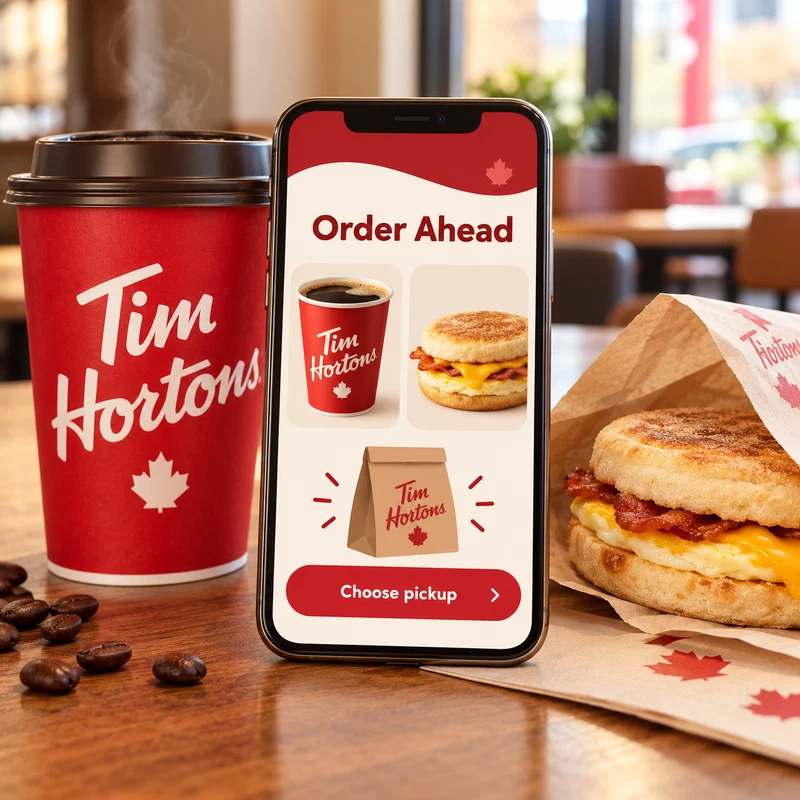
Order Ahead
Build your order in the app, pay before you arrive, and pick it up at the counter or the drive-thru.
Tims Rewards
Earn 10 points for every $1 spent before tax, and trade points for free coffee, tea, baked goods and more.
Exclusive Offers
A personal set of offers lands in the app every week. Activate the one you want and the saving comes off at checkout.
The app at a glance
- Cost: free, no subscription
- Where to get it: the App Store for iPhone (iOS 16.4 or later) and Google Play for Android
- Made by: The TDL Group Corp.
- Languages: English and French
- Main jobs: order ahead, Scan & Pay, offers, Tims Rewards
- Earn rate: 10 Tims Rewards points for every $1 spent before tax
- Cash on app orders: not accepted; pay by card, Apple Pay or a Tims Gift Card balance
- Checked: October 30, 2026
Get the app and set up your account
1. Download the right listing
Search “Tim Hortons” in the App Store or Google Play and take the free app from The TDL Group Corp. Canada and the United States run separate listings, so check that yours is the Canadian one. If the menu or the offers ever look wrong on your phone, the region setting in step 4 is the first thing to check.
2. Create your account
Rewards, offers and your order history all live in your account, so set it up before your first order. Points attach when you order through the app or scan at the till, which means the account has to be in place before you order, not after.
3. Add a payment method
Add a credit or debit card or a Tims Gift Card in the app, or use Apple Pay if it is already set up on your phone. You can keep more than one method on the account and switch between them, which matters for Scan & Pay below.
4. Set your region and your restaurant
Open the Account button, then Language and Region, and confirm Canada is selected. Then pick the restaurant you use most, so the app opens on the right menu and the right prices for that location.
How ordering ahead works
1. Pick your restaurant
Tap the Order tile and choose where the order is going. Most Tim Hortons restaurants take mobile orders. In the Restaurant Locator, choose Pickup and look for the red Order button on a restaurant: that button means the location takes orders through the app.
2. Build the order
Open a menu category, pick an item, and set it up the way you like it: size, milk, sugar, toasted or not. Tap Add, and repeat until the order is complete. If you want to look at the whole menu first, the Full Menu page carries every item this site covers.
3. Review and pay
Tap Review order, check the pickup details and the prep time, then tap Continue and pay with a method on your account. A confirmation tells you the order has gone through.
4. Pick it up
Inside the restaurant, mobile orders wait at the Mobile Pickup sign. If you chose the drive-thru when you ordered, collect there instead. Your confirmation shows the order, so keep the phone handy until you have your food.
Ordering the same thing again takes one tap. Recent orders sit in the app, and a customized order is saved on your menu, so your usual Double Double is ready to send again without being rebuilt.
Delivery runs through the same app. Where delivery is offered, it sits beside pickup: order and pay the same way, and the food comes to your door, earning points like any other app order. There is no separate delivery app. Tim Hortons also sits on Uber Eats, DoorDash and SkipTheDishes, but those are separate companies with separate orders, and nothing ordered there touches your Tims account.
Paying in the app
Scan & Pay
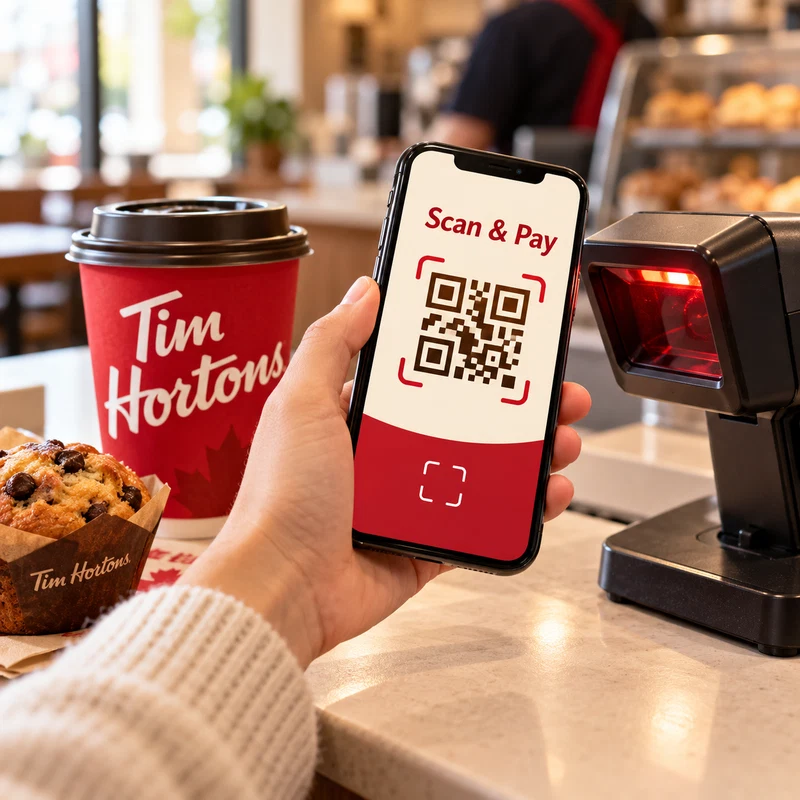
Scan & Pay is how you pay when you order at the counter or the drive-thru instead of ahead. Link a credit card or a Tims Gift Card in the app, turn on Scan & Pay, and one scan of your phone does three things at once: it pays for the order, earns your points, and applies any reward you have chosen. It runs at participating restaurants, inside and at the drive-thru.
What you can pay with
On an app order, the app takes Visa credit and debit cards, Mastercard credit cards, American Express, Discover, Apple Pay, and a Tims Gift Card balance. Cash does not work on an app order.
If Apple Pay is set up on your iPhone, the app treats it as your preferred way to pay for orders. One limit to know: Apple Pay does not work with Scan & Pay, so for a scan at the till you need a credit or debit card on the account as well. For any other wallet service, the payment screen at checkout is the final word on what your account can use.
Offers and rewards inside the app
The Offers tab
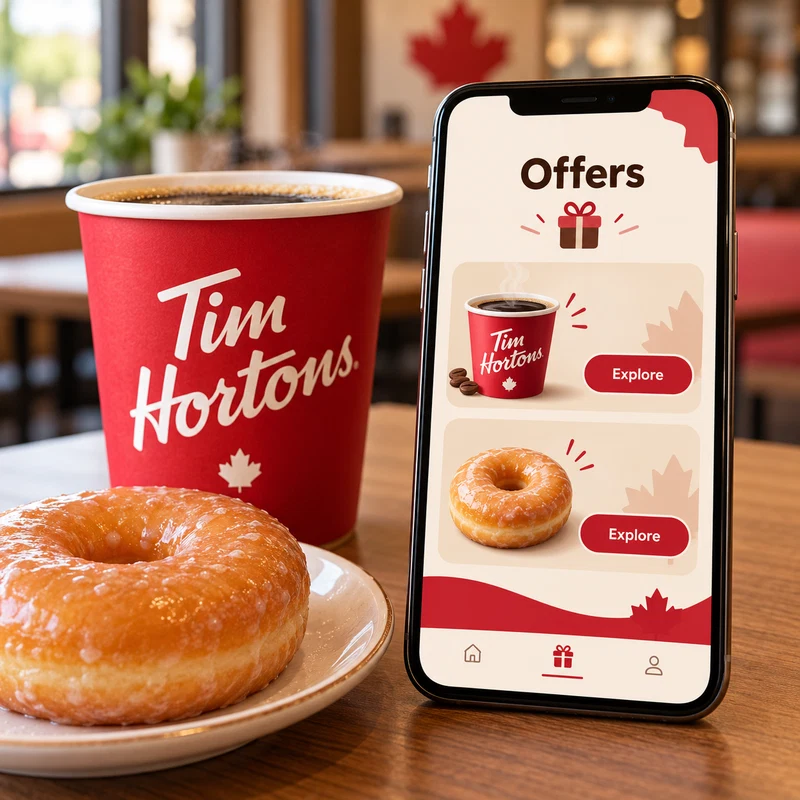
The Offers tab holds your personal set of offers. Open the tab, tap Activate on the offer you want, and read the offer details to see which items it covers. Then place an order with those items in it, and the offer comes off at checkout. The set is built from what you order, so the offers on your phone are yours alone, and a new set lands weekly. The saving side of the program, including the birthday offer for members, is covered on the Tim Hortons Deals page.
Your points balance
Every order you place while signed in earns 10 points for every $1 before tax, and orders in the app earn the same way as a scan at the till. Points show up in your account within 24 hours. Points expire 12 months after the month you earned them, and using the account does not push that date back, so the balance view in the app is worth a glance now and then: it shows what you have and what is close to expiry. What the points buy, level by level, sits on the Deals page and is not repeated here.
Contests and games
Two fixtures of the year live in the app. Roll Up To Win puts digital Rolls in the app each winter, next to the rolls on the cups. The Tims NHL Hockey Challenge runs through hockey season: pick three players on a game day and earn points when they score. Both play under the same account as your orders.
When something goes wrong
Every restaurant says CA only or US only
Your region is set to the wrong country. Tap the Account button at the top right of the home screen, open Language and Region, select the correct country and tap Apply.
The app or your scan is not working
Update the app from your store and restart it. The developer’s own guidance on the store listings is to run the latest version and restart the app. Check as well that your region is set to Canada. If it still fails, keep your receipt and contact the Guest Care Team through the Tim Hortons Help Centre, listed in the links for this page.
The restaurant you want is not in the app
Not every restaurant takes mobile orders. In the Restaurant Locator, choose Pickup: the restaurants with a red Order button take app orders, and one without the button does not. You can still order at the counter there and scan the app to earn your points. To look up a restaurant and its hours without the app, use this site’s Locations page.
An order went to the wrong restaurant
Take your phone to the restaurant that received the order and ask for the manager. Show the receipt from your email, or find the order in the app under Account, then Recent orders. The manager can issue a refund on a mobile order through Scan & Pay. If that does not settle it, contact the Guest Care Team at timhortons.ca and choose Mobile, Delivery & Tims Catering Orders.
The price in the app is not the price you expected
The app charges the prices of the restaurant your order goes to, and Tim Hortons prices are set in regional clusters across Canada, so the same order can cost a little more at one location than at another. Check the restaurant name at the top of the order before you pay, especially if you order from more than one location.